Troubleshooting Yoho Mobile Review Activation Issues in Thailand
9/13/2026
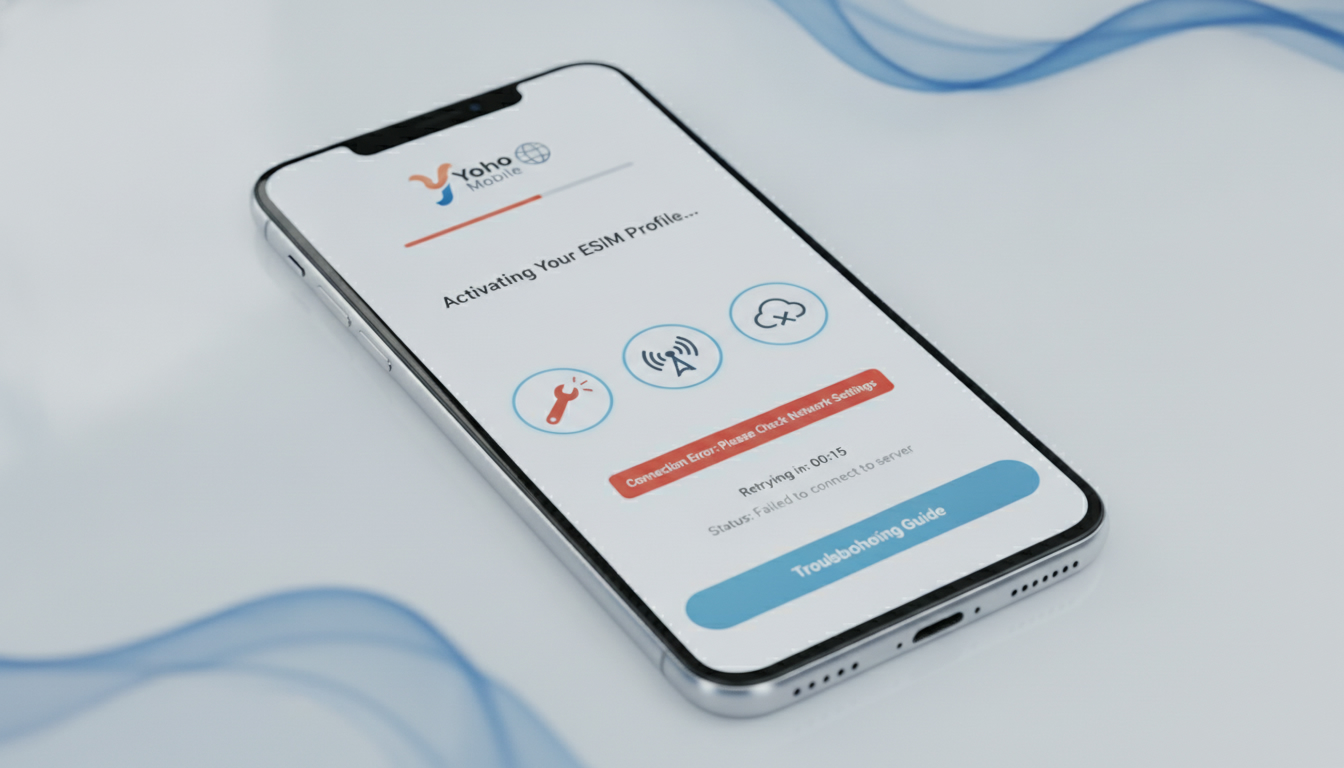
Troubleshooting Yoho Mobile eSIM Activation Issues in Thailand
Activating a Yoho Mobile eSIM in Thailand can sometimes hit snags that leave you disconnected just when you need your phone most. From my experience navigating Southeast Asia’s mobile landscape, the main trouble spots during activation often stem from app glitches, network settings, or user errors with QR codes.
If you’re considering switching to Yoho Mobile or just want to avoid activation headaches, here’s a practical guide to what can go wrong and how to fix it.
Common Activation Problems With Yoho Mobile eSIM
QR Code Scanning Failures and What Causes Them
One frequent issue is the failure to scan or register the Yoho Mobile eSIM QR code. This usually happens under two conditions: either the QR code image is low resolution or the phone’s camera app has trouble focusing on the code.
The mechanism behind this is simple—if the phone cannot properly decode the QR code, it won’t download the eSIM profile, resulting in no activation.
The consequence? You get stuck at the first step, unable to proceed with installation.
I always start by ensuring the QR code is displayed clearly on a bright screen or printed cleanly on paper. Avoid screenshots taken from low-quality sources or compressed messaging apps that degrade image quality.
App Installation and Login Hurdles
Yoho Mobile requires its dedicated app for managing eSIM plans and activation. A common trap is using an outdated version of the app or encountering login errors due to server-side issues or incorrect credentials.
When this happens, the app may freeze or fail to recognize your purchase.
The mechanism here involves authentication protocols that verify your account before allowing profile downloads. If these fail, activation halts.
To bypass this, I advise uninstalling and reinstalling the latest version of the Yoho Mobile app from official stores like Google Play or Apple App Store. Also, double-check your login details and internet connection before retrying.
Network Settings and Compatibility Challenges
Ensuring Proper Network Selection for Activation
Yoho Mobile operates on local 4G/5G networks but does not have its own physical towers—it relies on partnerships with established carriers. A common snag is that your phone might not automatically select the correct network operator after installing the eSIM profile.
This happens because some phones default to manual network selection or lock onto a previously used SIM’s network settings. The mechanism here is that if your device doesn’t switch to Yoho Mobile’s partner network, it won’t register properly, causing no service or limited connectivity.
To fix this, I always check my phone’s cellular settings after activation and manually select a compatible network operator if automatic selection fails. This step is especially crucial when switching from a physical SIM card of another provider.
Device Compatibility and Software Updates
Another overlooked issue is device compatibility. Not all phones support all eSIM profiles equally—some Android models have quirks with certain carriers’ provisioning methods.
Additionally, outdated operating system versions can block proper eSIM installation.
The mechanism is that eSIM provisioning follows GSMA specification SGP.22 for remote SIM provisioning; if your device firmware does not fully support this standard or has bugs, activation will fail or be unstable.
I always recommend verifying your phone model against Yoho Mobile’s supported devices list and ensuring your OS is updated to at least iOS 14 or Android 10, which are known to handle eSIMs reliably.
Customer Service Obstacles During Activation
Slow Response Times and Language Barriers
When activation issues persist despite troubleshooting, contacting Yoho Mobile customer service becomes necessary. However, users often report slow response times and limited English support as barriers.
The mechanism behind this is that Yoho Mobile operates primarily as an online service targeting global travelers; their customer care teams may be stretched thin or rely heavily on automated responses.
From my perspective, patience is key here—but also persistence in using multiple contact channels such as email and in-app chat. Documenting error messages clearly helps speed up resolution when you do get through.
Limited Self-Service Options in the App
While the Yoho Mobile app offers features like plan management and top-ups, it lacks advanced self-service troubleshooting tools such as detailed error diagnostics during activation failures.
This means users must rely on trial-and-error fixes or wait for customer support instead of resolving issues independently. I’d advise against expecting full autonomy from the app during tricky activations; prepare to combine app use with manual settings checks on your device.
How Pricing and Plan Choices Affect Activation Experience
Yoho Mobile offers various plans with different data caps and validity periods tailored for travelers. Sometimes activation issues arise when users select plans incompatible with their destination country or device capabilities.
For example, purchasing an unlimited data plan intended for Japan while physically in Thailand can cause registration errors due to regional restrictions embedded in the eSIM profile.
To avoid this trap, always confirm that the plan you buy matches your travel itinerary and device specifications before scanning your QR code. For a broader view of available plans suitable for Thailand travel, I recommend checking detailed comparisons on sites like Thailand Travel SIM’s best eSIM for Thailand.
Practical Steps to Resolve Yoho Mobile Activation Issues
- Verify QR Code Quality: Use a high-resolution screen or printout; avoid compressed images.
- Update Your Device Software: Ensure iOS 14+ or Android 10+ for full eSIM compatibility.
- Install Latest Yoho Mobile App: Download fresh from official stores; log in carefully.
- Manually Select Network Operator: Check cellular settings if no signal after installation.
- Restart Your Device: Sometimes a reboot triggers proper profile recognition.
- Contact Customer Support: Use multiple channels; provide clear error details.
- Confirm Plan Compatibility: Match plan region with your current location before purchase.
These steps reflect practical knowledge from working extensively with Southeast Asian mobile providers where device quirks and regional restrictions often complicate what should be simple activations.
Understanding Yoho Mobile User Experience Beyond Activation
While activation can sometimes be tricky, many users appreciate Yoho Mobile’s straightforward pricing options and decent network coverage across over 200 countries including Thailand’s major cities like Bangkok and Phuket. The service supports local 4G/5G networks without roaming fees when properly activated.
However, data speeds vary depending on local infrastructure—Yoho Mobile does not guarantee top-tier speeds but offers reliable connections suitable for browsing and streaming under normal conditions. For travelers prioritizing speed over cost savings, bigger carriers like AIS or TrueMove H might be better options despite higher prices.
The Yoho Mobile app features include easy top-ups and plan management but lack advanced diagnostics tools that could help troubleshoot activation failures more efficiently—a gap I’ve seen affect user satisfaction during initial setup phases.
If you want a comprehensive overview of how eSIMs work in Thailand generally—including other providers’ strengths—you can explore this detailed guide on getting an eSIM in Thailand which covers everything from installation to coverage nuances.
Activation troubles with Yoho Mobile often boil down to simple but critical steps: ensuring QR code clarity, updating device software to meet GSMA SGP.22 standards for remote provisioning, manually selecting networks when auto-connect fails, and managing expectations around customer service responsiveness. These are not unique issues but ones I encounter frequently enough to stress their importance before you commit to switching providers.
By addressing these points proactively, you reduce downtime and improve your chances of seamless connectivity throughout your stay in Thailand or elsewhere abroad using Yoho Mobile’s international roaming plans.
FAQ
Why does my Yoho Mobile eSIM QR code fail to scan?
QR code scanning fails often due to low image resolution or camera focus issues. Ensure the QR code is displayed clearly on a bright screen or printed cleanly. Avoid using compressed or low-quality images that your phone cannot properly decode.
How can I fix login problems with the Yoho Mobile app?
Login issues usually stem from outdated app versions or incorrect credentials. Update the Yoho Mobile app from official stores and double-check your login details. A stable internet connection also helps prevent authentication failures.
What should I do if my phone won’t connect to Yoho Mobile’s network?
If your phone doesn’t auto-select the correct network, manually choose Yoho Mobile’s partner operator in your cellular settings. This is especially important after switching from another SIM card to ensure proper registration and service.
Which devices are compatible with Yoho Mobile eSIMs?
Yoho Mobile supports devices running at least iOS 14 or Android 10 that comply with GSMA SGP.22 standards. Check their supported device list before activation, as some Android models may have provisioning quirks causing instability.
How can I get help if Yoho Mobile customer service is slow?
If support response is delayed, try multiple contact methods like email and in-app chat. Clearly document error messages to speed up assistance. Patience and persistence are key since their teams may be stretched thin handling global travelers.

Noah Bennett
Noah is a Southeast Asia travel writer. At Thailand eSIM he compares AIS, TrueMove H and dtac data plans from Bangkok to the islands.