How to Use T Mobile in Flight Connection on Airplanes
8/4/2026
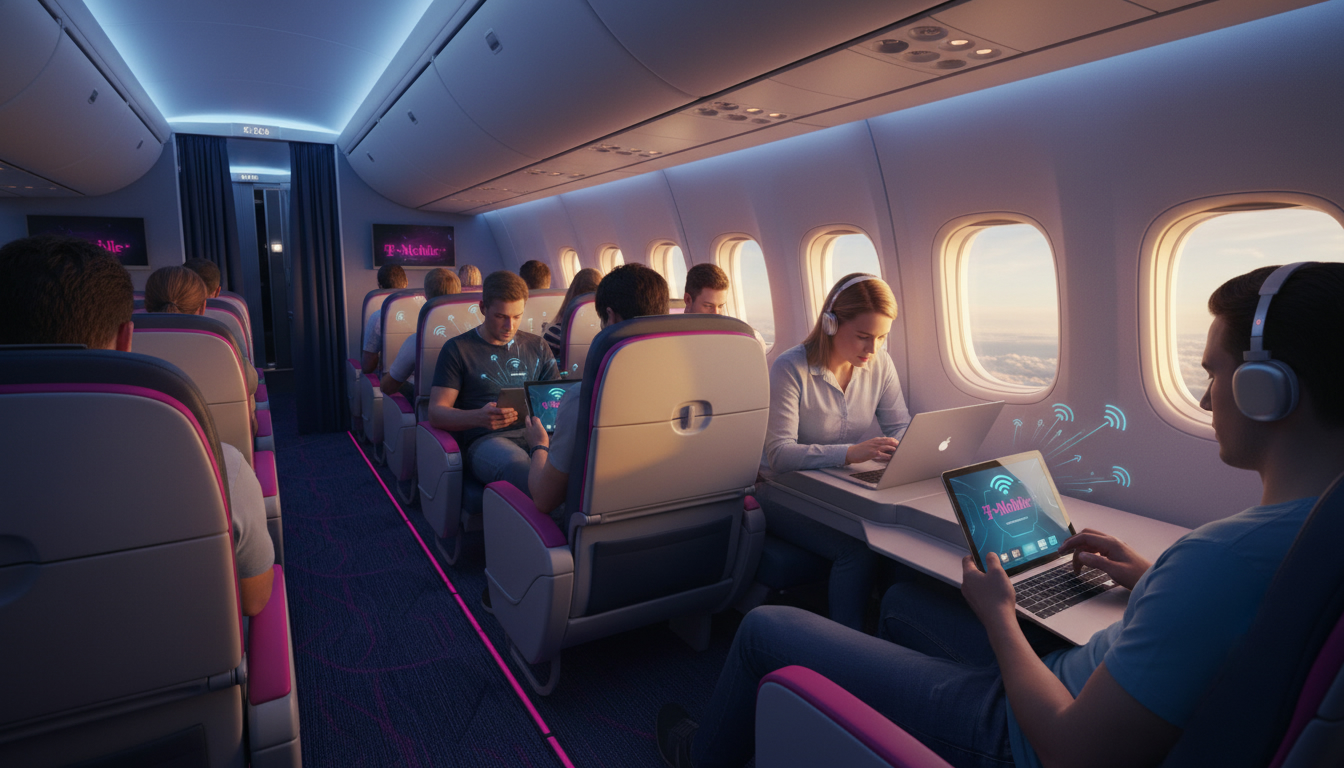
In short, what you'll discover in this article: How to use the T-Mobile in-flight connection to stay online during your flight, including eligibility, setup steps, costs, and supported airlines. Plus, tips on security, troubleshooting, and alternatives for seamless airplane internet access.
1. What Is the T-Mobile In-Flight Connection?
T-Mobile’s in-flight connection is a service that allows customers to access Wi-Fi and messaging while flying on select airlines. It’s powered by a partnership with Gogo, a leading provider of in-flight internet.
This service offers unlimited texting and Wi-Fi access on many flights at no additional cost for eligible T-Mobile plans.
1.1 Key Concepts: ATG, Satellite, and Cabin Wi-Fi Explained Simply
- ATG (Air-to-Ground): This technology connects airplanes to cellular towers on the ground using special antennas. It works best over land but has limited range over oceans.
- Satellite Internet: Some flights use satellites orbiting Earth to provide internet coverage anywhere, including over oceans.
- Cabin Wi-Fi: The airplane acts as a hotspot inside the cabin, distributing internet to passengers’ devices via Wi-Fi.
T-Mobile’s in-flight connectivity typically relies on Gogo’s satellite and ATG networks combined with onboard Wi-Fi hotspots to deliver service.
2. Before You Board — Essential Checks
2.1 Verify Phone and Plan Eligibility
Not all T-Mobile plans include free in-flight Wi-Fi or texting. The popular Magenta and Magenta MAX plans usually cover these benefits. Confirm your plan includes the T-Mobile in-flight Wi-Fi service by checking your account or T-Mobile’s official page.
2.2 Prepare Your Device (Airplane Mode, Wi-Fi On, Apps Updated)
Before takeoff:
- Enable airplane mode to comply with airline rules.
- Turn Wi-Fi back on to connect to the onboard network.
- Update apps that require internet access for smooth use during flight.
2.3 Subscriptions and Costs: What Does Your T-Mobile Plan Cover?
Most eligible T-Mobile plans offer free unlimited texting and basic Wi-Fi access on supported flights. However:
- Streaming or higher-speed internet may require purchasing an upgrade.
- Some airlines might charge separately for full internet access.
Check your plan details carefully so you know what’s included.
3. Connecting Onboard — Step-by-Step Procedure
3.1 Step 1 — Activate Airplane Mode Then Turn On Wi-Fi
Once the plane reaches cruising altitude:
- Switch your phone to airplane mode.
- Enable Wi-Fi manually.
This allows your device to connect safely to the plane’s network.
3.2 Step 2 — Select the Cabin Network and Open the Captive Portal
Look for the onboard Wi-Fi network name (often “Gogo” or airline-specific). Connect to it, then open your browser; you should be redirected automatically to the login page (captive portal).
3.3 Step 3 — Authenticate / Choose Your In-Flight Plan
On the portal:
- Select the option for T-Mobile customers if available.
- Authenticate using your phone number or T-Mobile credentials.
- Choose from free messaging or paid internet packages if needed.
Note that some flights now require text verification via a one-time PIN for security.
4. Usage Limitations and Best Practices (Streaming, Video Calls, Gaming)
While T-Mobile offers convenient connectivity:
- Streaming video may be limited or slower due to bandwidth constraints.
- Video conferencing can be unstable.
- Online gaming is generally not recommended because of latency.
For best experience:
- Use messaging apps primarily.
- Download entertainment before flying.
- Avoid heavy data activities unless you purchase premium Wi-Fi.
5. Security and Privacy While Flying (VPNs, Avoid Banking Operations)
Public airplane Wi-Fi is less secure than private networks:
- Use a VPN to encrypt your data.
- Avoid logging into sensitive accounts like banking or shopping sites.
- Keep software updated for protection against vulnerabilities.
These precautions help maintain privacy during your flight connection.
6. Troubleshooting — Common Issues and Quick Fixes
6.1 Unable to Access the Captive Portal
Try these steps:
- Disconnect and reconnect to the Wi-Fi network.
- Clear your browser cache or try a different browser.
- Restart your device if needed.
6.2 Unstable or Slow Connection
Remember that in-flight internet depends on satellite or ATG signals which can fluctuate due to weather or location:
- Move closer to your seat’s window if possible.
- Limit background app usage consuming bandwidth.
6.3 Payment or Billing Not Recognized
If you purchased a plan but it’s not activating:
- Confirm payment went through via your bank or credit card statement.
- Contact T-Mobile support through their in-flight help portal.
7. Alternatives and Partners (Quick Comparison with Other In-Flight Providers)
Besides T-Mobile’s partnership with Gogo, other providers offer in-flight internet:
- Viasat: Satellite-based with high speeds but often paid separately.
- Panasonic Avionics: Available on some international flights with various pricing tiers.
Choosing between them depends on airline support and personal preferences.
8. Performance Tests and User Feedback (Sample Measurements)
Users report that T-Mobile’s in-flight messaging is reliable across many flights, while full internet speeds vary widely from slow browsing to moderate streaming capability depending on route and aircraft equipment.
For travelers wanting consistent connectivity beyond messaging, purchasing premium plans or alternative providers may be necessary.
9. Conclusion — Checklist To Keep Before and During Your Flight
Before boarding:
- Confirm your T-Mobile plan supports in-flight connection.
- Update apps and enable airplane mode + Wi-Fi.
- Know which airlines support T-Mobile in-flight service.
During flight:
- Connect to the onboard network promptly.
- Authenticate using your phone number or credentials.
- Use messaging freely; consider paid upgrades for browsing/streaming.
Following this checklist ensures you stay connected smoothly without surprises.
10. Call To Action — Links To Official Resources And T-Mobile Support
For official details about the T-Mobile in-flight connection and troubleshooting help, visit their support pages directly.
If you’re planning travel beyond flights, consider checking out guides on how to get an eSIM for Thailand or how to buy an eSIM in Thailand for seamless mobile data coverage once you land.
Stay connected effortlessly from takeoff through touchdown!
FAQ
Which T-Mobile plans include free in-flight Wi-Fi?
T-Mobile’s Magenta and Magenta MAX plans typically include free unlimited texting and basic Wi-Fi access on supported flights. It’s important to verify your specific plan’s eligibility by checking your account or T-Mobile’s official website before flying.
How do I connect to T-Mobile in-flight Wi-Fi on a plane?
After the plane reaches cruising altitude, enable airplane mode, then turn Wi-Fi back on. Connect to the onboard network, usually named “Gogo” or airline-specific, and open your browser to access the login portal where you authenticate as a T-Mobile customer.
Are there any costs for using T-Mobile’s in-flight internet service?
Basic Wi-Fi and unlimited texting are free for eligible plans, but streaming or faster internet speeds may require purchasing an upgrade. Some airlines might also charge separately for full internet access, so check your plan details and airline policies beforehand.
What security measures should I take when using in-flight Wi-Fi?
Since airplane Wi-Fi is less secure, use a VPN to encrypt your data and avoid accessing sensitive accounts like banking. Keeping your software updated also helps protect against vulnerabilities while connected during your flight.
What should I do if I can’t access the in-flight Wi-Fi portal?
Try disconnecting and reconnecting to the Wi-Fi network, clearing your browser cache, or using a different browser. Restarting your device can also help. If issues persist, contact T-Mobile support through their in-flight help portal for assistance.

Noah Bennett
Noah is a Southeast Asia travel writer. At Thailand eSIM he compares AIS, TrueMove H and dtac data plans from Bangkok to the islands.