Better Roaming eSIM Test Troubleshooting and Activation Fixes
9/24/2026
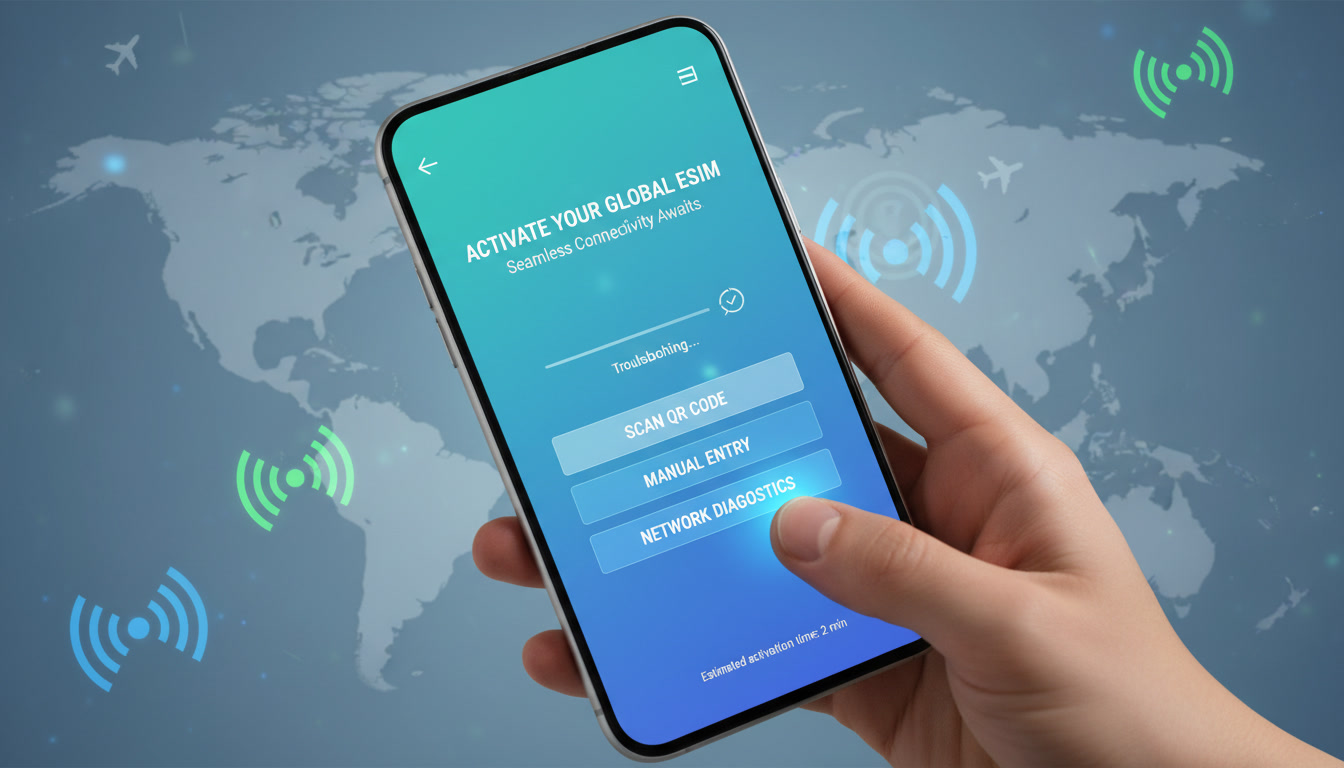
Troubleshooting Better Roaming eSIM Activation and Testing for Seamless Travel Connectivity
When preparing for international travel, ensuring your Better Roaming eSIM works flawlessly across borders is crucial. Activation hiccups or roaming glitches can leave you disconnected at critical moments.
I always start by pinpointing common activation pitfalls and testing methods that reveal how well your eSIM handles roaming before you leave. This approach saves time, avoids unexpected costs, and guarantees smoother connectivity on the go.
Common Activation Issues with Better Roaming eSIM and How to Fix Them
Activating a Better Roaming eSIM usually follows a straightforward process, but several technical snags can arise that disrupt service. Understanding these issues helps you troubleshoot effectively.
Network Lock and Device Compatibility
Some phones are locked to a specific carrier or region, which blocks eSIM activation or roaming. For example, if your device is carrier-locked, the eSIM profile might install but fail to connect to foreign networks.
- Condition: Device locked to a carrier or incompatible with eSIM profiles.
- Mechanism: The phone’s firmware restricts network access to specific SIM profiles.
- Consequence: Activation appears successful, but no roaming connection is established.
To avoid this, verify your phone supports multiple eSIM profiles and is unlocked before purchasing a Better Roaming plan. Apple’s iPhone XS and later models generally support this, as do many recent Android devices with eSIM capability.
QR Code Scanning Errors
Better Roaming provides QR codes to download your eSIM profile. A common mistake is scanning the QR code too late or under poor lighting conditions, causing the phone not to recognize the code.
- Condition: Poor lighting or delayed scanning after code generation.
- Mechanism: The camera fails to capture the QR code accurately.
- Consequence: The profile download fails or installs incorrectly.
I recommend scanning the QR code immediately upon receipt in a well-lit environment. If scanning fails, try manually entering the activation code if available or request a new QR code from Better Roaming support.
Incorrect Profile Installation Sequence
Installing multiple eSIM profiles without proper order can cause conflicts. For instance, activating a local SIM profile before enabling the Better Roaming profile might cause the phone to prioritize the wrong network.
- Condition: Multiple active eSIM profiles on the device.
- Mechanism: The device prioritizes one profile over another based on settings.
- Consequence: Roaming data does not route through Better Roaming’s network as intended.
To fix this, disable other data profiles temporarily during activation and testing of your Better Roaming eSIM. Once confirmed working, you can re-enable other profiles but ensure the roaming profile has priority in cellular settings.
How to Test a Better Roaming eSIM Before Traveling
Testing your roaming eSIM in advance is essential to avoid surprises abroad. Since real roaming requires being outside your home country network, simulated tests and specific apps can help assess readiness.
Using Airplane Mode and Manual Network Selection
One practical method I always use involves toggling airplane mode and manually selecting networks:
- Enable airplane mode on your phone.
- Turn on cellular data while keeping airplane mode active (Wi-Fi off).
- Manually select a foreign network from available options in cellular settings.
- Check if your Better Roaming eSIM connects and data flows correctly.
This simulates roaming conditions without leaving your country. If connection fails here, it likely won’t work abroad either.
Speed and Coverage Testing Apps
Apps like OpenSignal or Speedtest.net provide real-time data speed and coverage maps that help evaluate roaming performance once connected. While these apps don’t test activation directly, they confirm whether your data connection is stable and fast on roaming networks.
Better Roaming claims coverage in over 160 countries with fast connections optimized for travel. However, actual speeds depend on local network infrastructure and congestion.
Checking Data Usage and Connection Stability
After activation, monitor your phone’s data usage logs and signal strength indicators during testing phases. Sudden drops or inability to maintain LTE/5G connections often indicate configuration issues or network incompatibility.
Steps to Activate a Better Roaming eSIM Without Issues
Following precise steps reduces activation errors significantly:
- Purchase Your Plan Early: Buy your Better Roaming plan at least 24 hours before departure to allow time for setup.
- Install Before Leaving: Install the eSIM profile on your device while connected to Wi-Fi at home; this avoids activation failures due to lack of internet.
- Scan QR Code Immediately: Use your phone’s camera in good lighting to scan the QR code provided by Better Roaming.
- Set Data Priority: In your phone’s cellular settings, assign priority to the Better Roaming profile for data usage during travel.
- Test Locally: Use manual network selection as described above to verify connectivity before departure.
- Activate Upon Arrival: Your plan activates automatically once you enter the destination country’s network coverage area.
Better Roaming advises installing their eSIM before travel for optimal experience, as noted in their official support documentation.
Field Observations That Make Testing Effective
- When you install an eSIM profile while connected only via Wi-Fi (no cellular), some devices delay full activation until cellular data is available; this can cause confusion about whether activation succeeded.
- If you attempt to activate an eSIM within 30 minutes of switching between profiles repeatedly, some phones lock out further attempts temporarily due to security protocols—waiting 30 minutes resets this lockout.
- Using manual network selection reveals if your device can see partner networks for roaming; if no foreign networks appear when expected, it often means SIM provisioning failed or device restrictions apply.
These insights come directly from troubleshooting patterns common with multi-network roaming SIMs like Better Roaming’s service.
Advantages of Using a Better Roaming eSIM for International Travel
Better Roaming offers several benefits over traditional physical SIM cards:
- Instant activation via QR code without visiting local shops.
- Coverage in more than 160 destinations worldwide.
- Secure mobile internet with no need for multiple SIM swaps.
- Competitive pricing compared to local roaming fees charged by home carriers.
- Ability to manage multiple plans simultaneously on dual-SIM devices.
For travelers heading specifically to Thailand or Southeast Asia, I recommend checking detailed guides such as Best eSIM for Thailand which also discuss local providers like AIS and TrueMove H alongside international options like Better Roaming.
How to Improve Your Roaming Experience With an eSIM
Even with a reliable provider like Better Roaming, certain practices enhance connectivity:
- Always update your phone’s carrier settings before travel; outdated settings can block new profiles from activating properly.
- Avoid switching between Wi-Fi and cellular networks rapidly during activation; this can interrupt profile downloads.
- Keep battery levels above 20% during installation since low power modes may restrict background processes needed for activation.
- Use airplane mode toggling combined with manual network selection as a diagnostic tool if you suspect poor roaming performance.
For more technical details on installing an eSIM on iPhone or Android devices, refer directly to BetterRoaming’s installation guide.
Ensuring your Better Roaming eSIM activates smoothly and performs well on test runs saves you from costly surprises abroad. By understanding common pitfalls like device locks, QR scanning errors, and profile conflicts—and applying practical tests such as manual network selection—you gain confidence in your international connectivity setup well before departure.
FAQ
How do I fix Better Roaming eSIM activation errors?
To fix activation errors, ensure your device is unlocked and supports multiple eSIM profiles. Scan the QR code promptly in good lighting, and disable other active eSIM profiles during installation to avoid conflicts. Following these steps reduces common activation issues.
What is the best way to test Better Roaming eSIM before travel?
Test your eSIM by enabling airplane mode, turning on cellular data, and manually selecting a foreign network. This simulates roaming conditions locally and helps confirm if your eSIM connects properly before you leave.
Why does my phone not connect to roaming networks with Better Roaming?
Connection failures often result from carrier-locked devices or incorrect profile priority. Make sure your phone is unlocked and set the Better Roaming profile as the primary data source in cellular settings to ensure proper roaming connectivity.
Which apps help check Better Roaming eSIM data speed and coverage?
Apps like OpenSignal and Speedtest.net provide real-time data speed tests and coverage maps. While they don’t test activation, they help verify your roaming connection’s stability and speed once connected.
How can I improve my Better Roaming eSIM experience abroad?
Update your phone’s carrier settings before travel, avoid rapid switching between Wi-Fi and cellular during activation, keep battery levels above 20%, and use airplane mode toggling with manual network selection to diagnose roaming issues effectively.

Noah Bennett
Noah is a Southeast Asia travel writer. At Thailand eSIM he compares AIS, TrueMove H and dtac data plans from Bangkok to the islands.